This complete guide will show you how to install and use IPTV Smarters Expert on iPhone and iPad (iOS) using the Apple App Store.
If you’re looking for a simple way to set up IPTV Smarters Expert, enter your subscription details (Username, Password, and Server URL), and start streaming with your IPTV service, this tutorial covers everything step by step.
What Is IPTV Smarters Expert?
IPTV Smarters Expert is a powerful IPTV player that allows users to stream live TV, movies, and series using:
Xtream Codes login
M3U playlists
The IPTV Smarters Expert app itself does not provide channels. You must add your own IPTV subscription to start watching content.
What You Need to Get Started
To use IPTV Smarters Expert, simply enter your subscription details:
Username – provided with your subscription
Password – provided with your subscription
Host (Server URL) – provided with your subscription
Once these details are added, your channels and content will load automatically.
Install IPTV Smarters Expert from the Apple App Store (iOS)
1. Open the App Store on your iPhone or iPad.
2. In the search bar, type IPTV Smarters Expert.
3. Select the app from the search results.
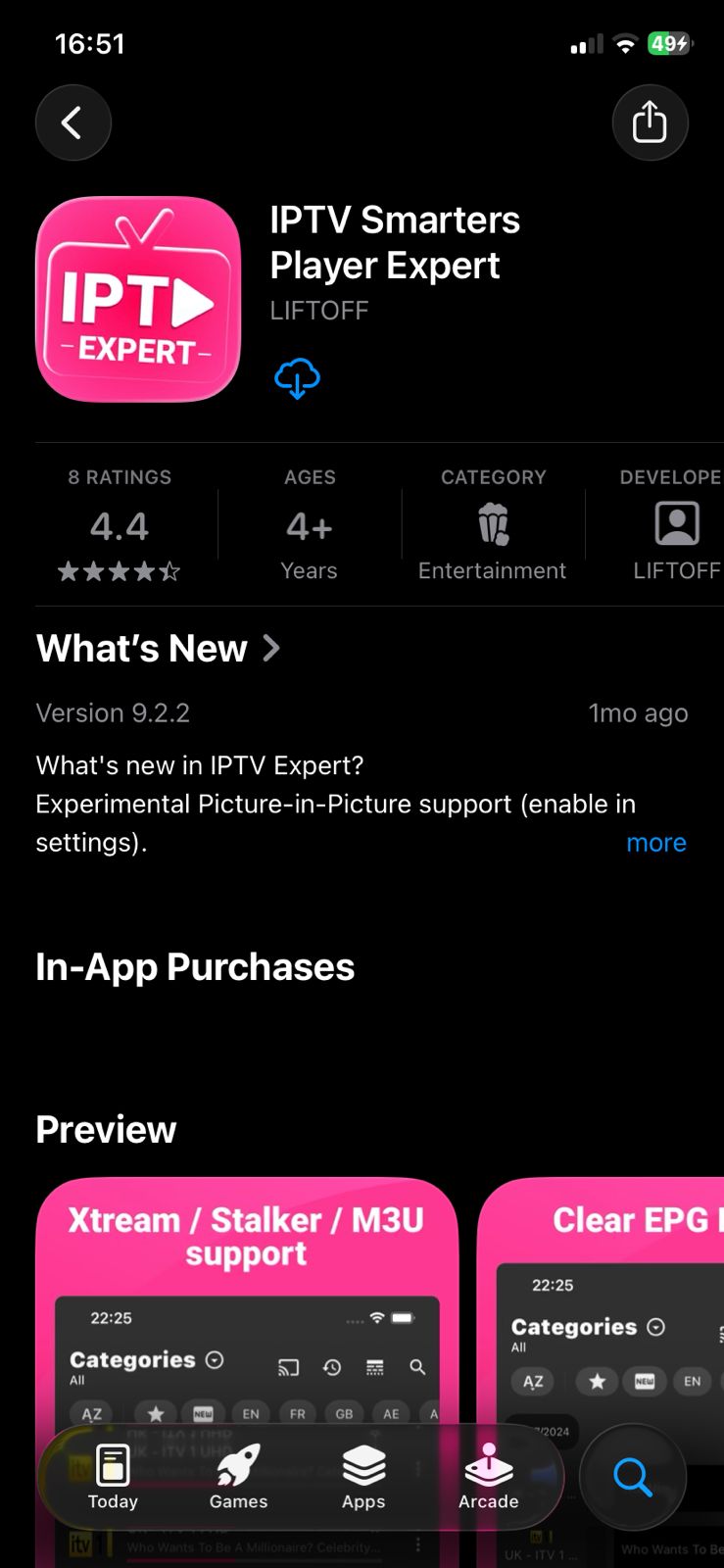
4. Tap Get to download the app.
5. Confirm the download using Face ID, Touch ID, or your Apple ID password.
6. Wait until the installation is complete.
IPTV Expert App Setup
1. Open the IPTV Expert app.
2. When the payment screen appears, skip it — the free version is enough to use the service.
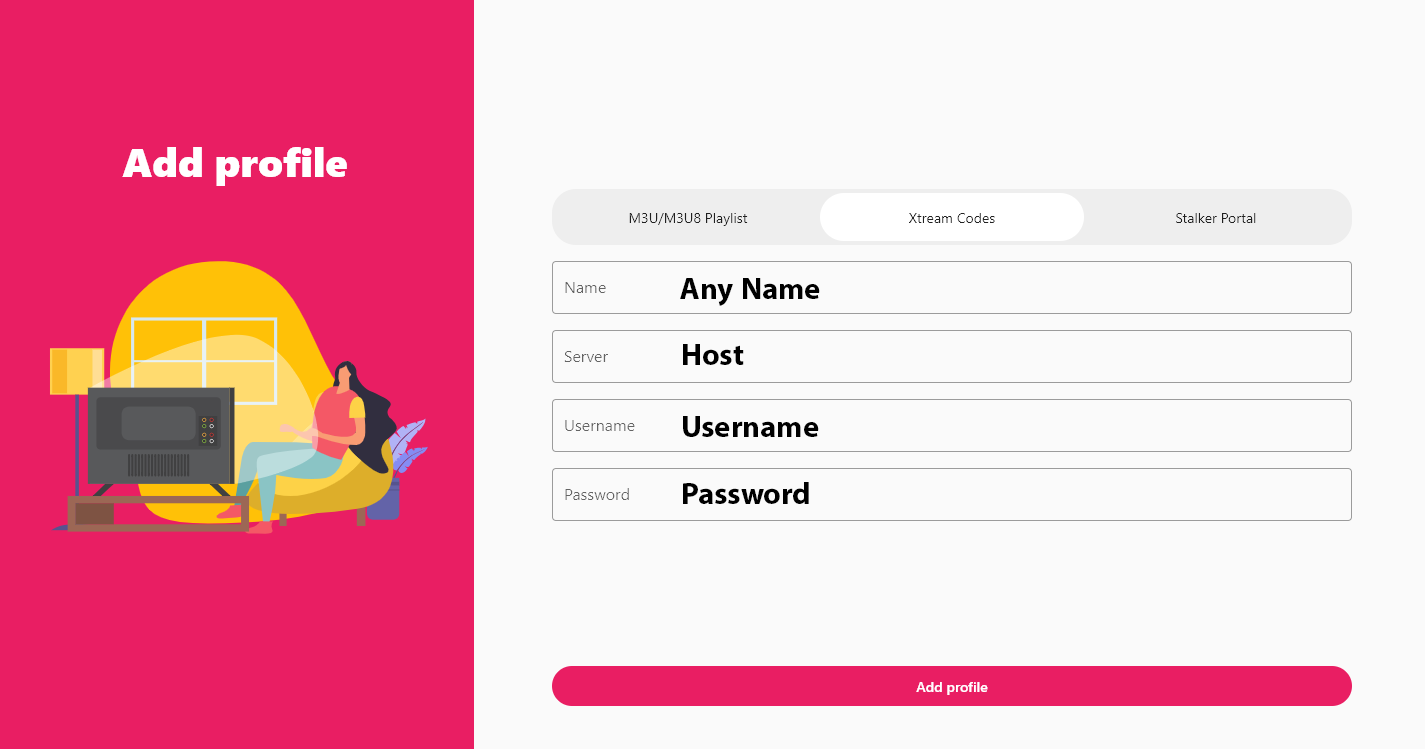
3. Enter your subscription details exactly as follows:
Name: Any name (your choice)
Server: Your Portal URL (host)
Username: Provided with your subscription
Password: Provided with your subscription
4. Click Add Profile.
Wait a few seconds while your channel list loads and start watching.