How to Install IPTV Smarters Expert on Windows

This guide shows you how to install and use IPTV Smarters Expert on Windows directly from the Microsoft Store — no emulator needed.

Buttons

Step 1 – Install IPTV Smarters Expert from Microsoft Store

1. Open Microsoft Store on your Windows PC.

2. Search for IPTV Smarters Expert.

3. Select the app and click Install.
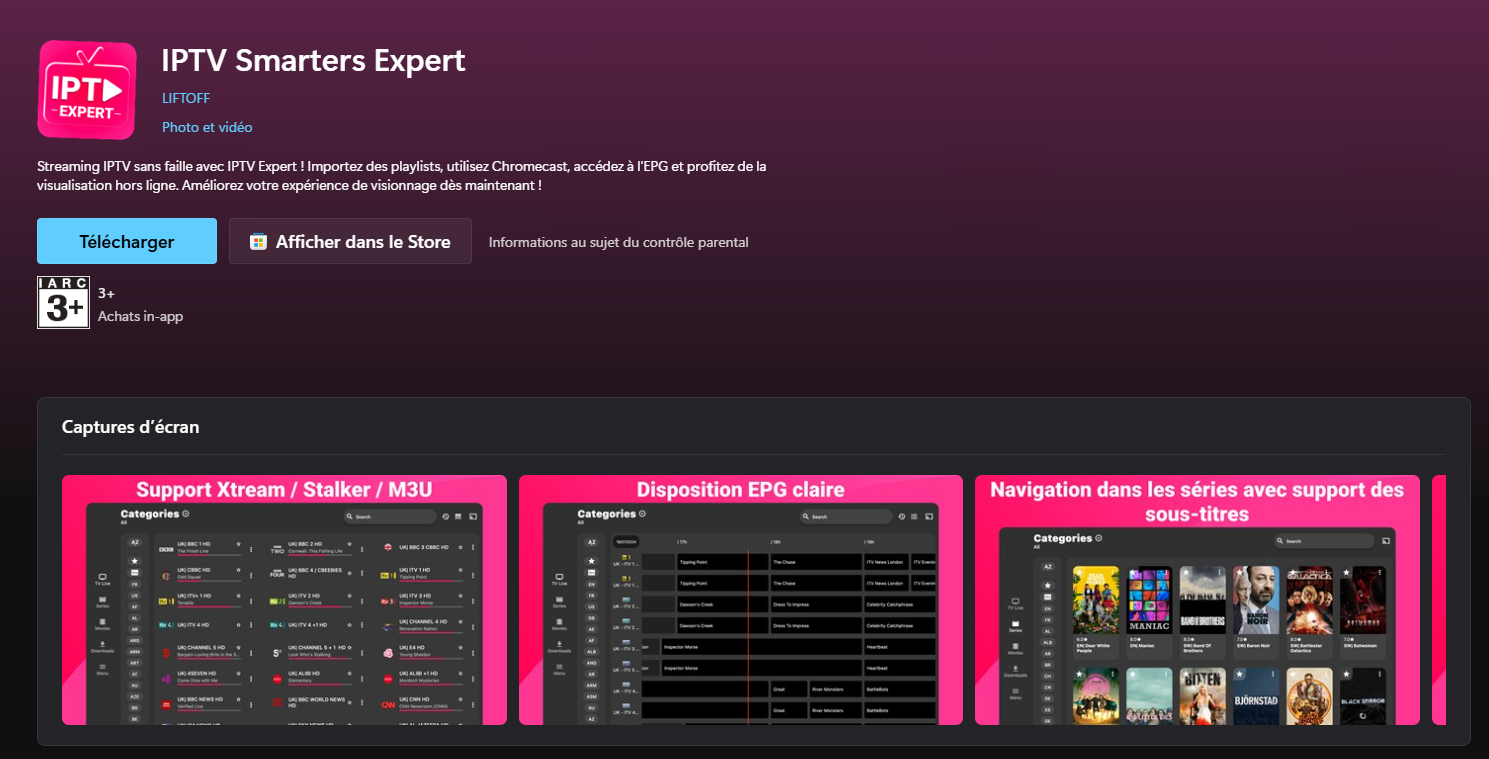
4. Wait until installation is complete.

IPTV Expert App Setup

1. Open the IPTV Expert app.

2. When the payment screen appears, skip it — the free version is enough to use the service.
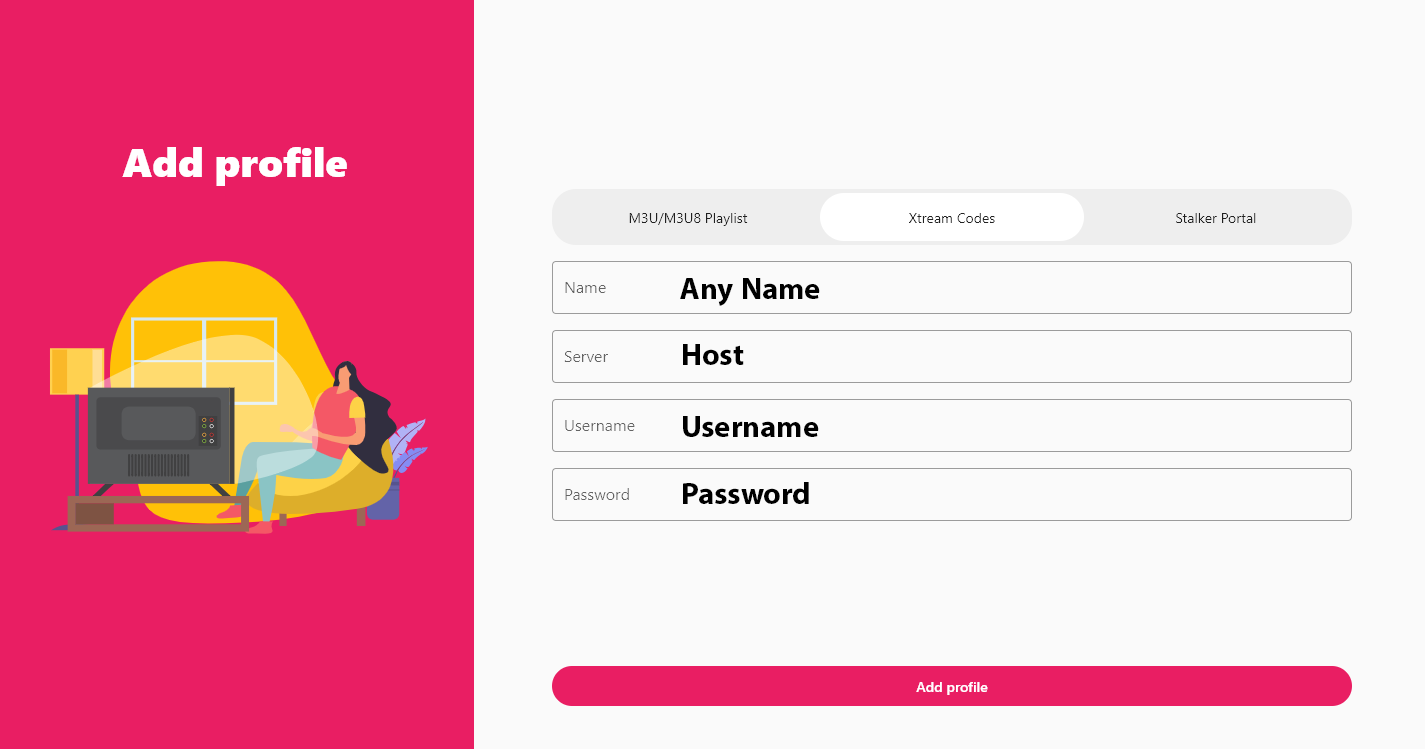
3. Enter your subscription details exactly as follows:

    • Name: Any name (your choice)

    • Server: Your Portal URL (host)

    • Username: Provided with your subscription

    • Password: Provided with your subscription

4. Click Add Profile.

Wait a few seconds while your channel list loads and start watching.

Why Choose IPTV Smarters Expert?

The IPTV Smarters Expert app is one of the easiest IPTV players to use because it offers:

  • Fast MAC-based activation
  • Simple M3U playlist support
  • Smooth performance on Android phones, TV boxes, and tablets
  • Easy setup for beginners

Can I Use IPTV Smarters Expert on Other Devices?

Yes. Besides Android, IPTV Smarters Expert also works on:

  • Smart TVs
  • Android TV Boxes
  • Fire TV Stick (via APK)
  • Some Samsung & LG models

If you’re searching for Hot IPTV for Samsung TV or IPTV Smarters Expert on Firestick

Request a Free IPTV Trial

Enter your email to request a free IPTV trial.
You will receive a confirmation email to verify your address before we send your trial details.

Newsletter Form (#3)
Support
Live Chat Online

Support & Free Trial

Contact us for technical support
or to request a free IPTV trial.

WhatsApp Support
Fast Support
Telegram Support
Fast Support
Live Chat
Fast Support
Email Support
Slower Response