Step 1: Install Hot IPTV from Google Play Store
1. Open Google Play Store on your Android TV, Google TV & Chromecast.
2. Search for Hot Player IPTV or Hot IPTV app.
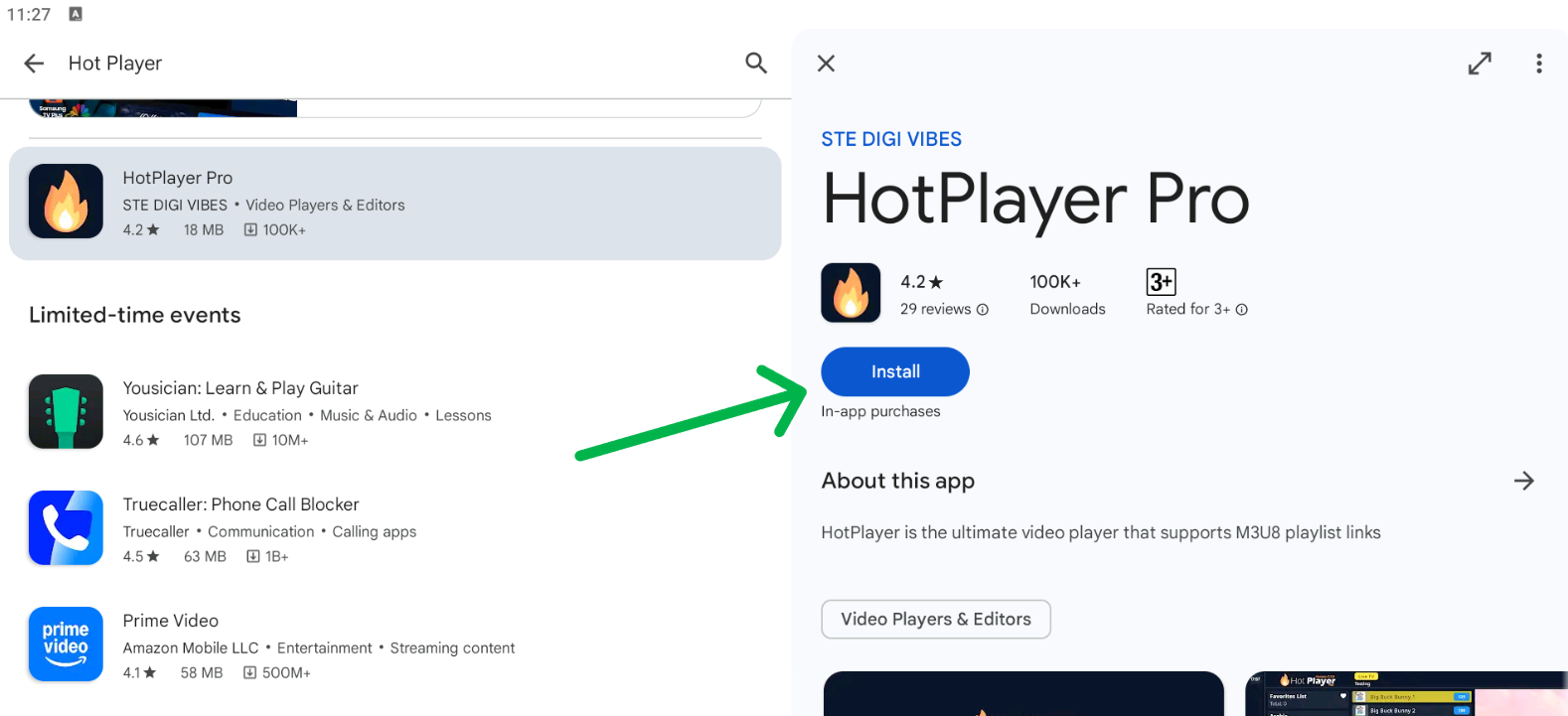
3. Select the app and tap Install.
4. Wait until installation is complete.
Step 2 – Open Hot IPTV App
After installation:
1. Open Hot Player IPTV.
2. The app will display your MAC Address on the screen.

3. Keep this MAC address — you will need it for activation.
Option 2: Activate Hot IPTV Yourself
1. Open this page in your browser: https://hotplayer.app/upload
2. Enter your MAC Address.
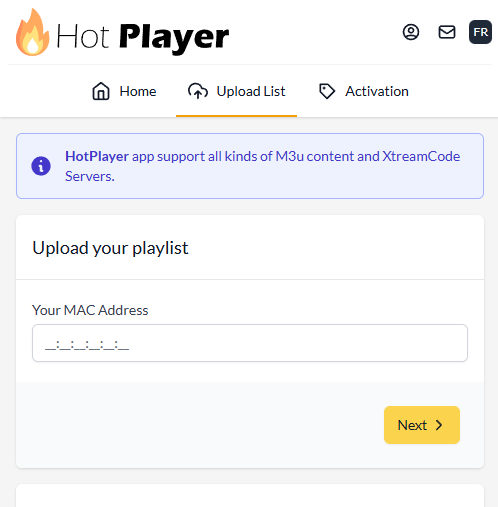
3. Submit the form.
Your Hot IPTV player activation will be completed in seconds.
Step 4 – Add M3U Playlist to Hot IPTV
Once activation is done, it’s time to add your IPTV playlist.
1. Choose M3U as your setup method.
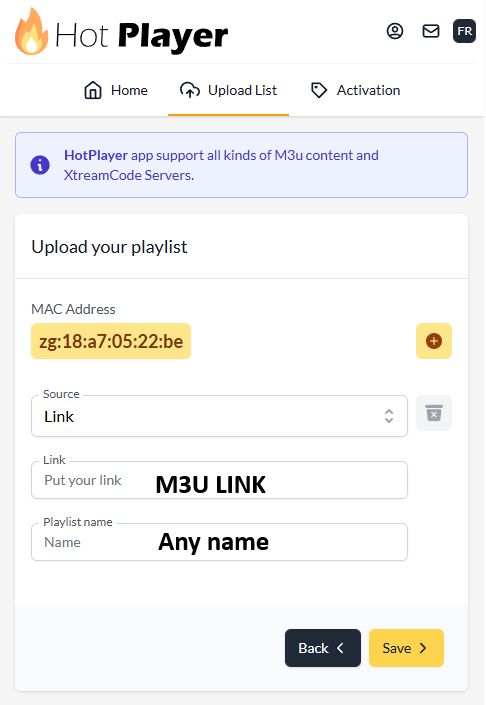
Enter:
- Playlist Name
- M3U URL (provided after subscription)
2. Save your settings.
This connects your IPTV service to Hot Player IPTV.
Common Hot IPTV Problems & Fixes
 Hot IPTV stream failed
 Hot IPTV stream failed
- Check your internet connection.
- Reload the playlist.
- Make sure your M3U link is valid.
Hot IPTV app not working
- Restart the app.
- Clear cache:
Settings → Apps → Hot IPTV → Clear Cache
Activation not completed
- Verify your MAC Address.
- Re-submit it at:
https://hotplayer.app/upload - Or contact support.