Step 1 – Prepare Your Device for Hot Player Installation
Before installing the Hot Player APK, you need to install the Downloader app.
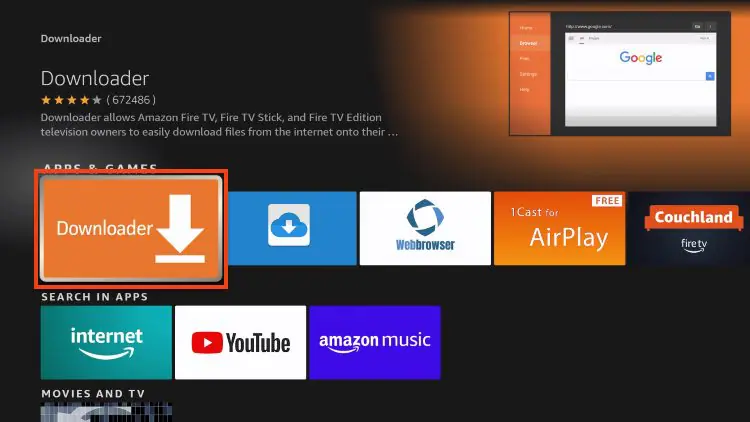
Install Downloader on Fire TV Stick
1. From the home screen, select Search.
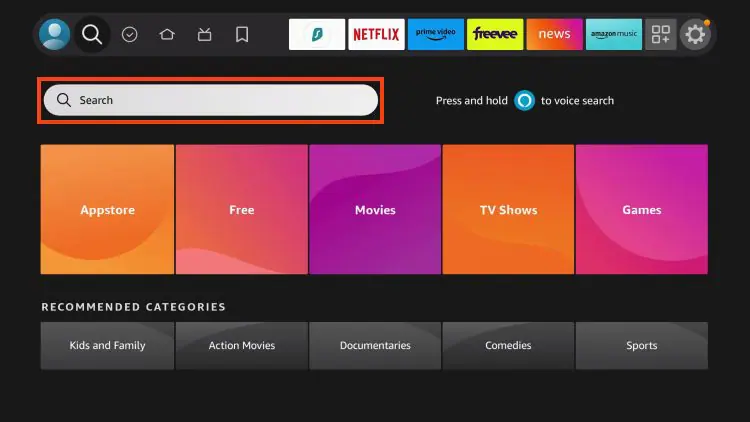
2. Type Downloader and press Enter.
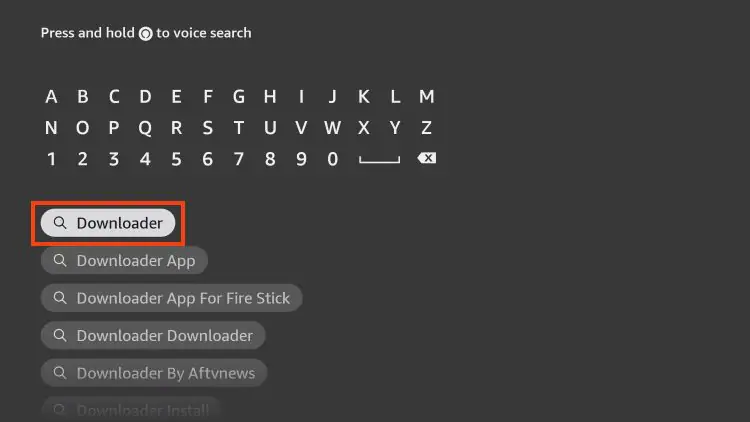
3. Choose the Downloader app from the results.
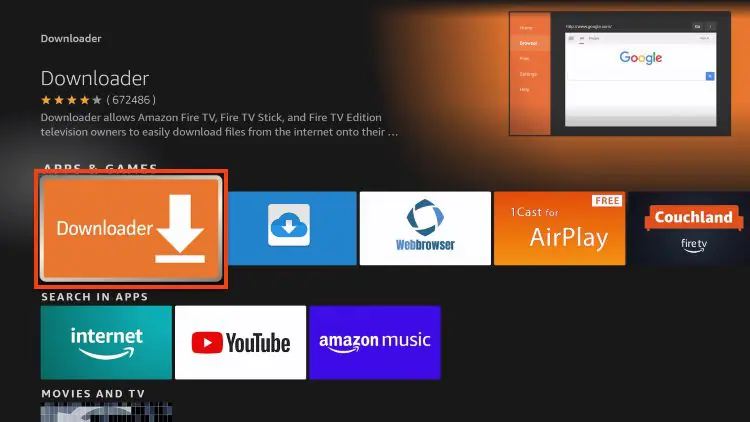
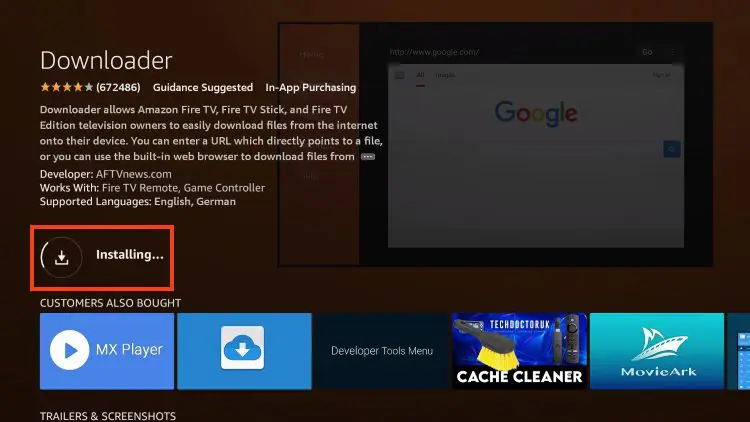
4. Click Download / Get.
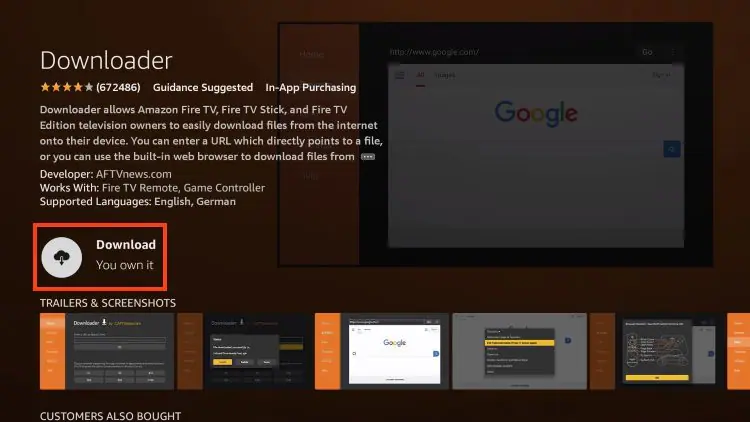
5. Wait for the installation to finish.
You’ll see: Downloader Ready to Launch.
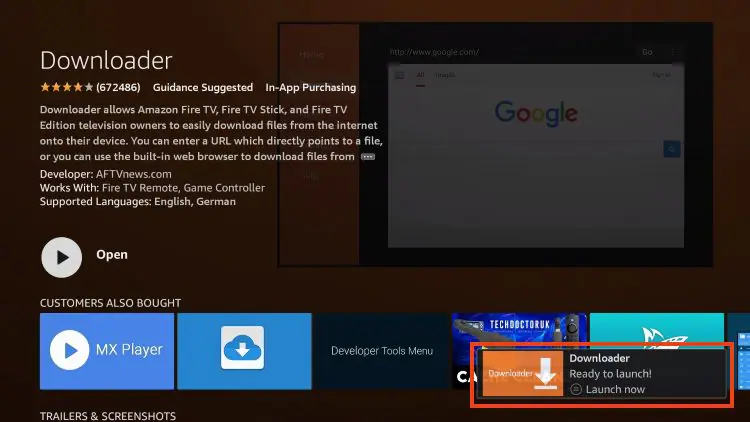
Downloader is now installed and ready to use for sideloading the 8K Player IPTV app.
Step 2 – Allow Installation from Unknown Sources
To install the 8K Player VIP APK, Firestick must allow apps from unknown sources.
Enable Unknown Apps
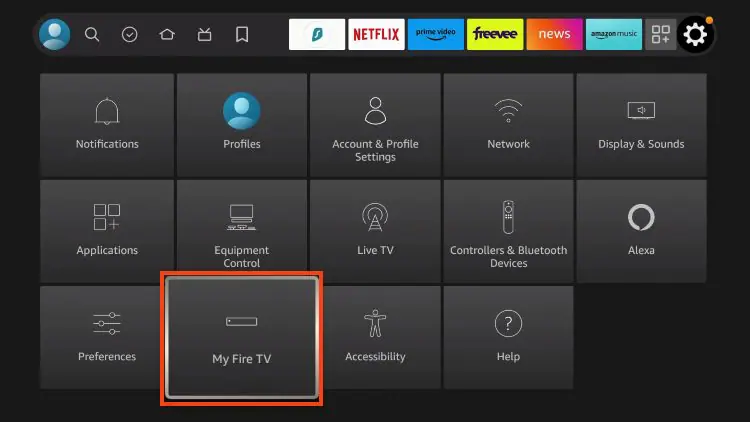
1. Go to Settings → My Fire TV.
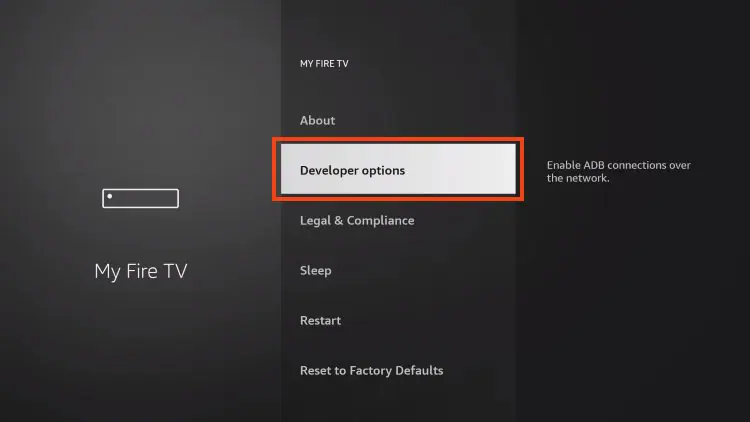
2. Select Developer Options.
3. Click Install Unknown Apps.
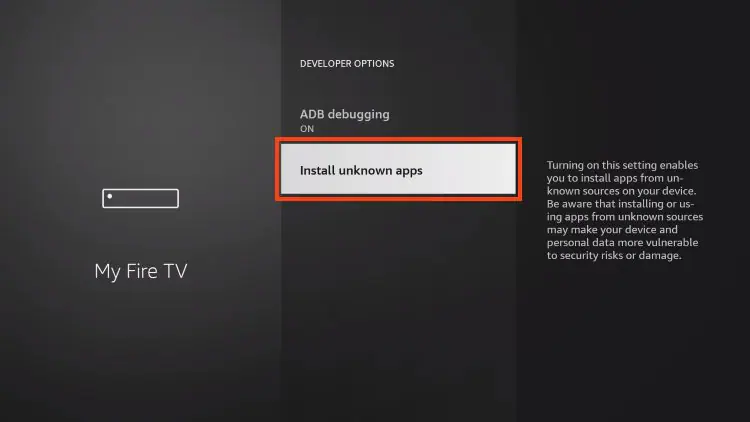
4. Find Downloader and turn it ON.
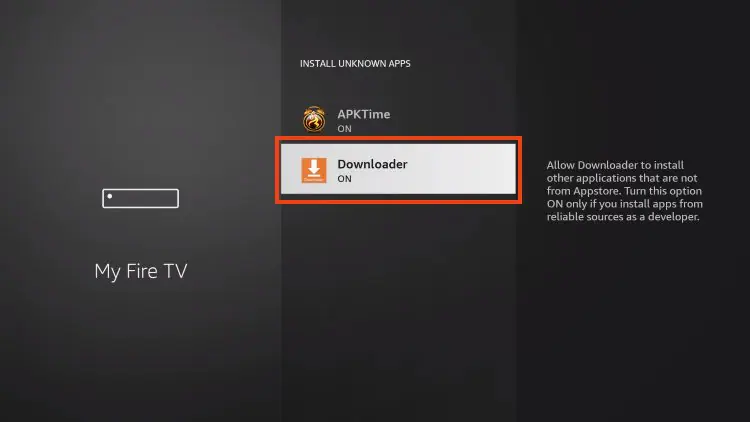
Now your Fire TV Stick can install external apps like 8K Player, 8K IPTV Player, and other media player apps.
Step 3 – Download and Install Hot Player
Now it’s time to install the Hot Player app.
Installation Steps
1. Open Downloader.
2. Click the URL field.
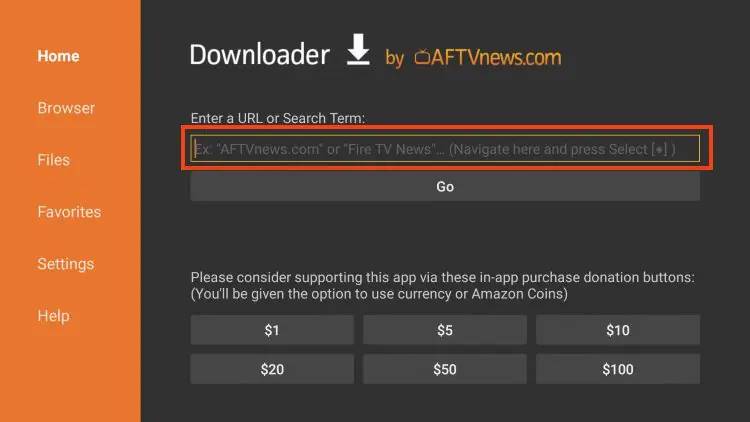
3. Enter this download code:
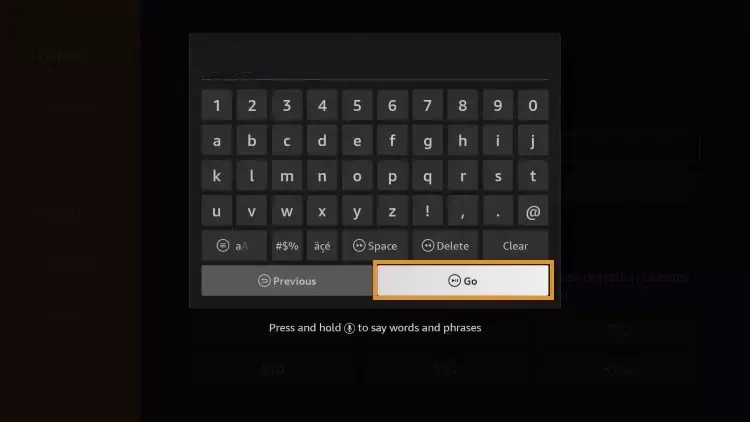

4. Click Go.
5. Wait for the redirect page (4–6 seconds).
6. If the download doesn’t start, click the link manually.
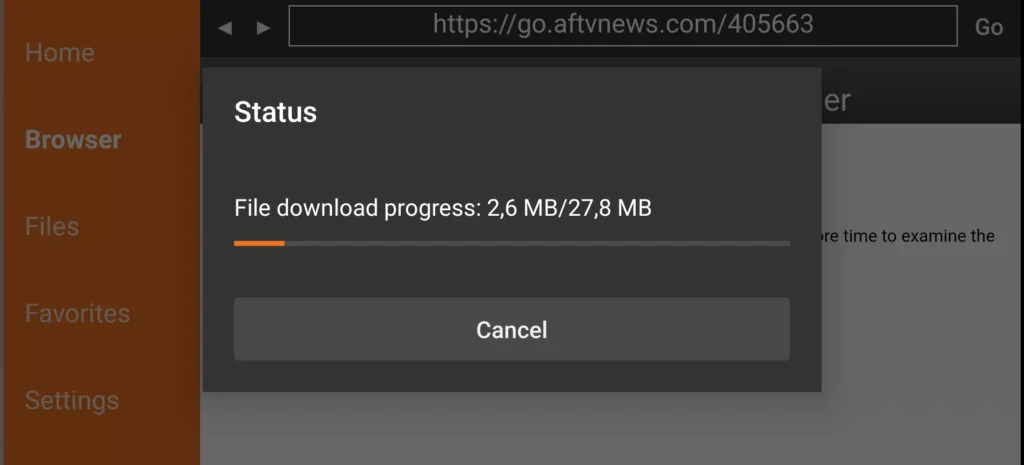
7. Wait for the Hot Player APK to download.
8. Click Install.
 The Hot Player app is now installed on your Fire TV Stick.
Step 4 – Open Hot IPTV App
After installation:
1. Open Hot Player IPTV.
2. The app will display your MAC Address on the screen.

3. Keep this MAC address — you will need it for activation.
Option 2: Activate Hot IPTV Yourself
1. Open this page in your browser: https://hotplayer.app/upload
2. Enter your MAC Address.
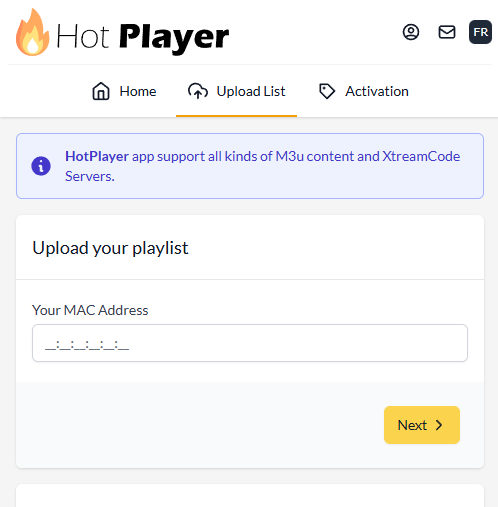
3. Submit the form.
Your Hot IPTV player activation will be completed in seconds.
Step 6 – Add M3U Playlist to Hot IPTV
Once activation is done, it’s time to add your IPTV playlist.
1. Choose M3U as your setup method.
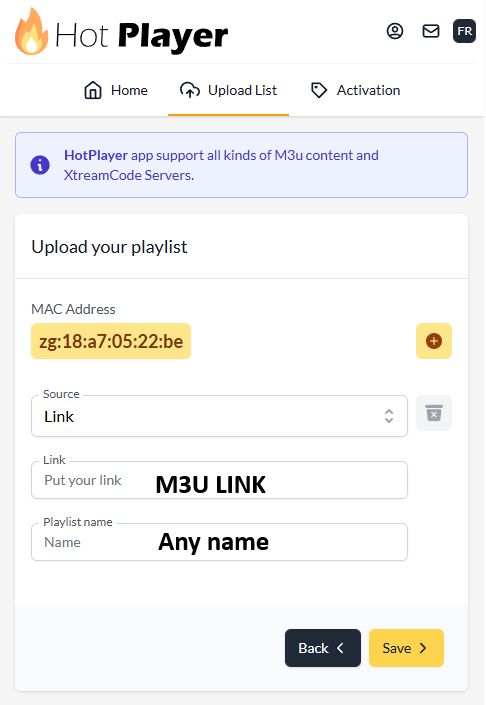
Enter:
- Playlist Name
- M3U URL (provided after subscription)
2. Save your settings.
This connects your IPTV service to Hot Player IPTV.
Common Hot IPTV Problems & Fixes
 Hot IPTV stream failed
 Hot IPTV stream failed
- Check your internet connection.
- Reload the playlist.
- Make sure your M3U link is valid.
Hot IPTV app not working
- Restart the app.
- Clear cache:
Settings → Apps → Hot IPTV → Clear Cache
Activation not completed
- Verify your MAC Address.
- Re-submit it at:
https://hotplayer.app/upload - Or contact support.