How to Install and Use Hot IPTV on Android Devices (APK & App Guide)

This complete guide will show you how to install and use Hot IPTV on Android devices using both the Google Play Store app and the Hot IPTV APK method.

If you’re looking for a simple way to activate Hot Player IPTV, upload your MAC address, and start streaming with your M3U playlist, this tutorial covers everything step by step.

What Is Hot IPTV?

Hot IPTV is a powerful IPTV player that allows users to stream live TV, movies, and series using:

  • M3U playlists
  • Xtream Codes
  • MAC-based activation

The Hot IPTV app itself does not provide channels. You must activate the player and add your own IPTV service to start watching content.

Step 1 – Download Hot IPTV on Android

You can install Hot IPTV in two different ways.

Method 1: Install Hot IPTV from Google Play Store

1. Open Google Play Store on your Android device.

2. Search for Hot Player IPTV or Hot IPTV app.
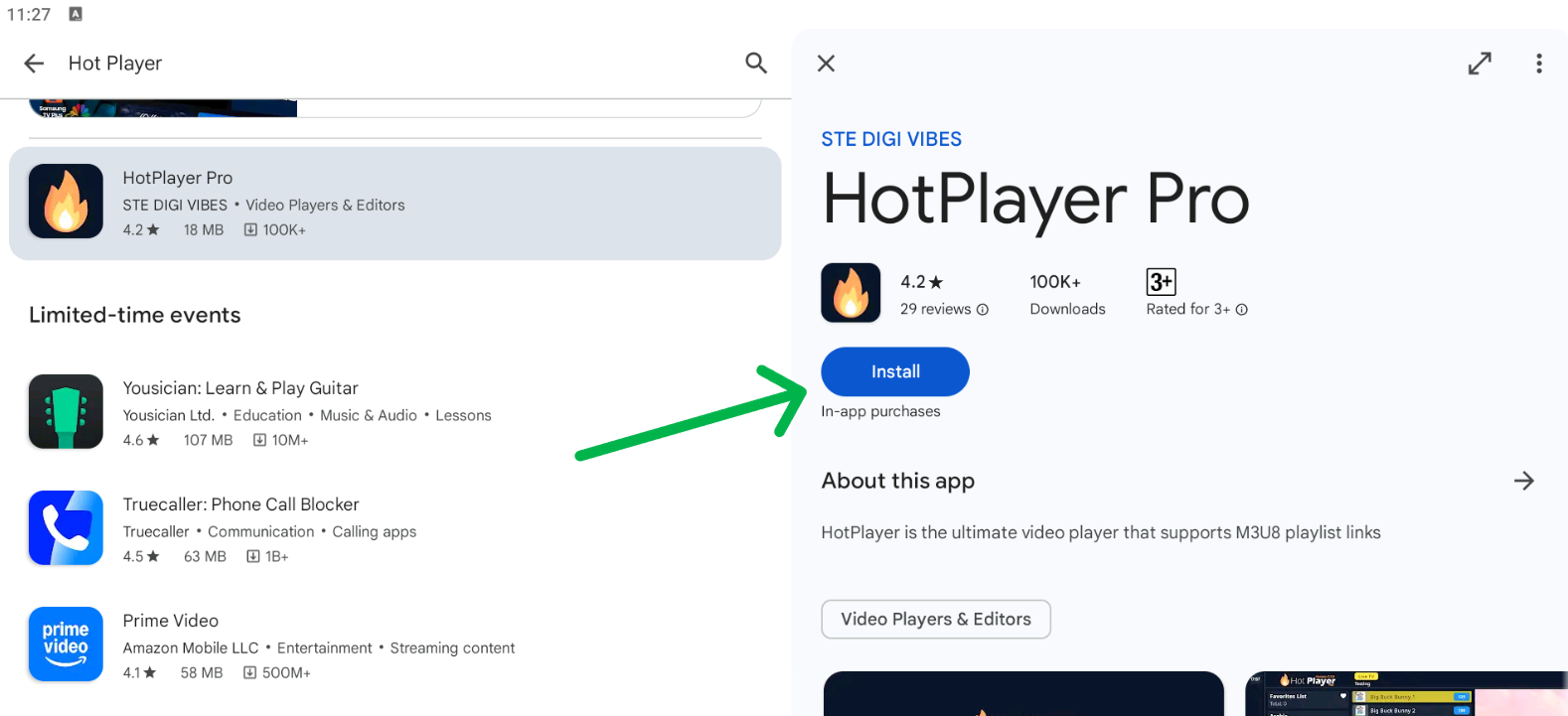
3. Select the app and tap Install.

4. Wait until installation is complete.

Method 2: Install Hot IPTV via APK

If the app is not available in your region, you can use the APK version.

1. Download the Hot IPTV APK from your official source.

2. Go to Settings → Security → Install unknown apps.

3. Allow installation from your browser or file manager.

4. Open the APK file and tap Install.

Now the Hot IPTV app is ready on your Android device.

Step 2 – Open Hot IPTV App

After installation:

1. Open Hot Player IPTV.

2. The app will display your MAC Address on the screen.

3. Keep this MAC address — you will need it for activation.

Step 3 – Activate Hot IPTV Using MAC Address

To use Hot IPTV, your MAC address must be activated.

You have two options:

Option 1: Send MAC Address to Our Team

  1. Copy the MAC Address from the app.
  2. Send it to our support team.
  3. We will activate Hot IPTV player for you instantly — no extra steps needed.

Option 2: Activate Hot IPTV Yourself

1. Open this page in your browser:
👉 https://hotplayer.app/upload

2. Enter your MAC Address.
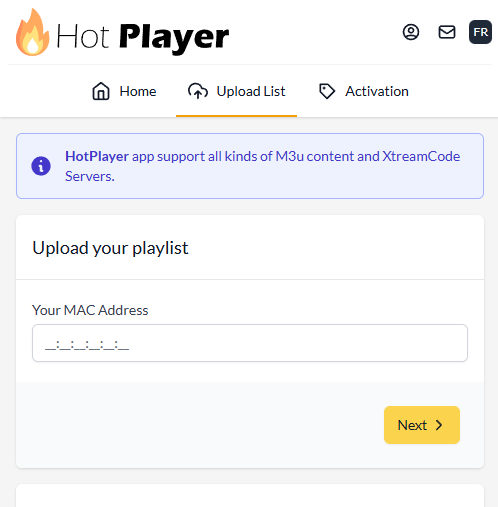
3. Submit the form.

Your Hot IPTV player activation will be completed in seconds.

Step 4 – Add M3U Playlist to Hot IPTV

Once activation is done, it’s time to add your IPTV playlist.

1. Choose M3U as your setup method.
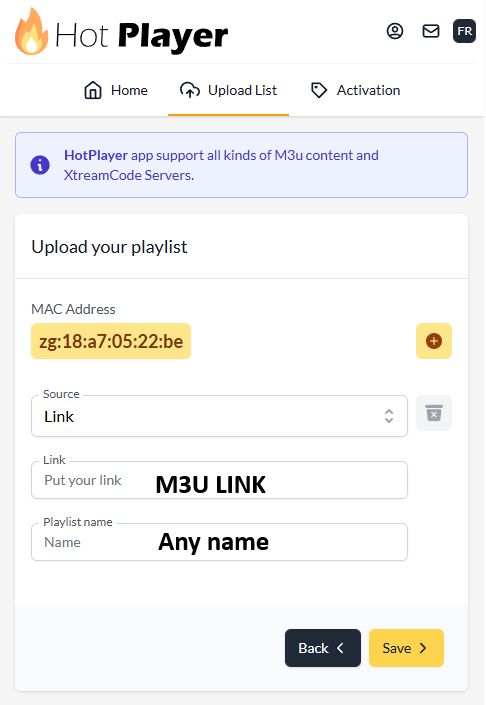
Enter:

    • Playlist Name
    • M3U URL (provided after subscription) 

2. Save your settings.

This connects your IPTV service to Hot Player IPTV.

Step 5 – Reload Hot IPTV and Start Watching

  1. Go back to the main screen of Hot IPTV.
  2. Tap Reload.
  3. Wait for channels and content to load.

🎉 That’s it! You can now enjoy live TV, movies, and series using Hot IPTV on Android.

Why Choose Hot IPTV?

The Hot IPTV app is one of the easiest IPTV players to use because it offers:

  • Fast MAC-based activation
  • Simple M3U playlist support
  • Smooth performance on Android phones, TV boxes, and tablets
  • Easy setup for beginners

It works perfectly as a:

  • Hot IPTV player
  • Hot Player IPTV app
  • Reliable solution for Hot IPTV subscription users

Common Hot IPTV Problems & Fixes

🔹 Hot IPTV stream failed

  • Check your internet connection.
  • Reload the playlist.
  • Make sure your M3U link is valid.

🔹 Hot IPTV app not working

  • Restart the app.
  • Clear cache:
    Settings → Apps → Hot IPTV → Clear Cache

🔹 Activation not completed

Can I Use Hot IPTV on Other Devices?

Yes. Besides Android, Hot IPTV also works on:

  • Smart TVs
  • Android TV Boxes
  • Fire TV Stick (via APK)
  • Some Samsung & LG models

If you’re searching for Hot IPTV for Samsung TV or Hot IPTV on Firestick, the same activation method using MAC address applies.